

How to Generate Images with Grok Imagine 2.0
Make stills with xAI's Grok Imagine Image 2.0 in Versely, web and iOS: model picker, 13 aspect ratios, 1K or 2K, and download. From 2 credits at 60% off.
xAI's Grok Imagine Image 2.0 is the cheapest frontier still on Versely right now: 2 credits at 1K and 3 at 2K, down from 5 and 7, a 60% cut on the text-to-image row. It is quick, it takes thirteen aspect ratios from 2:1 to 1:2, and it is very good at the "ordinary photo with one impossible thing in it" look that keeps getting shared. The video above is the full web run, 31 seconds from picker to Details panel. Below are the same clicks on the web and the same taps in the iOS app.
For what the 2.0 generation actually changed (region edits, compositing, Quality Mode), read Grok Imagine 2.0 region editing. This page is only the how.
The two rows and what they cost
| Row | Job | 1K | 2K | Discount |
|---|---|---|---|---|
| Grok Imagine Image 2.0 | Text to image | 2 credits (was 5) | 3 credits (was 7) | 60% off |
| Grok Imagine Image 2.0 Edit | Edit up to 3 source images with a text instruction | 5 credits | 7 credits | none |
The discount is on the text-to-image row only. The edit row is served by a different provider and bills full rate, which is why its card has no green badge. Both rows top out at 2K. There is no 4K tier here, so if the still needs to survive a hard crop, plan for 2K and a tight ratio rather than hoping for more pixels.
Aspect ratios on the generate row: 2:1, 20:9, 19.5:9, 16:9, 4:3, 3:2, 1:1, 2:3, 3:4, 9:16, 9:19.5, 9:20, 1:2. The 19.5:9 and 9:19.5 options are phone-screen ratios, handy for wallpaper-style posts and full-bleed Stories.
On the web (app.versely.studio)
- Sign in at app.versely.studio and click Imagine under Create in the sidebar.
- Check the composer toggle is on Image.
- Click Models. In the Image Models dialog stay on the Text to image tab, type
grokin Search models..., and click Grok Imagine Image 2.0. Once you have used it, it also appears under Recent, as it does in the video. Click Done.
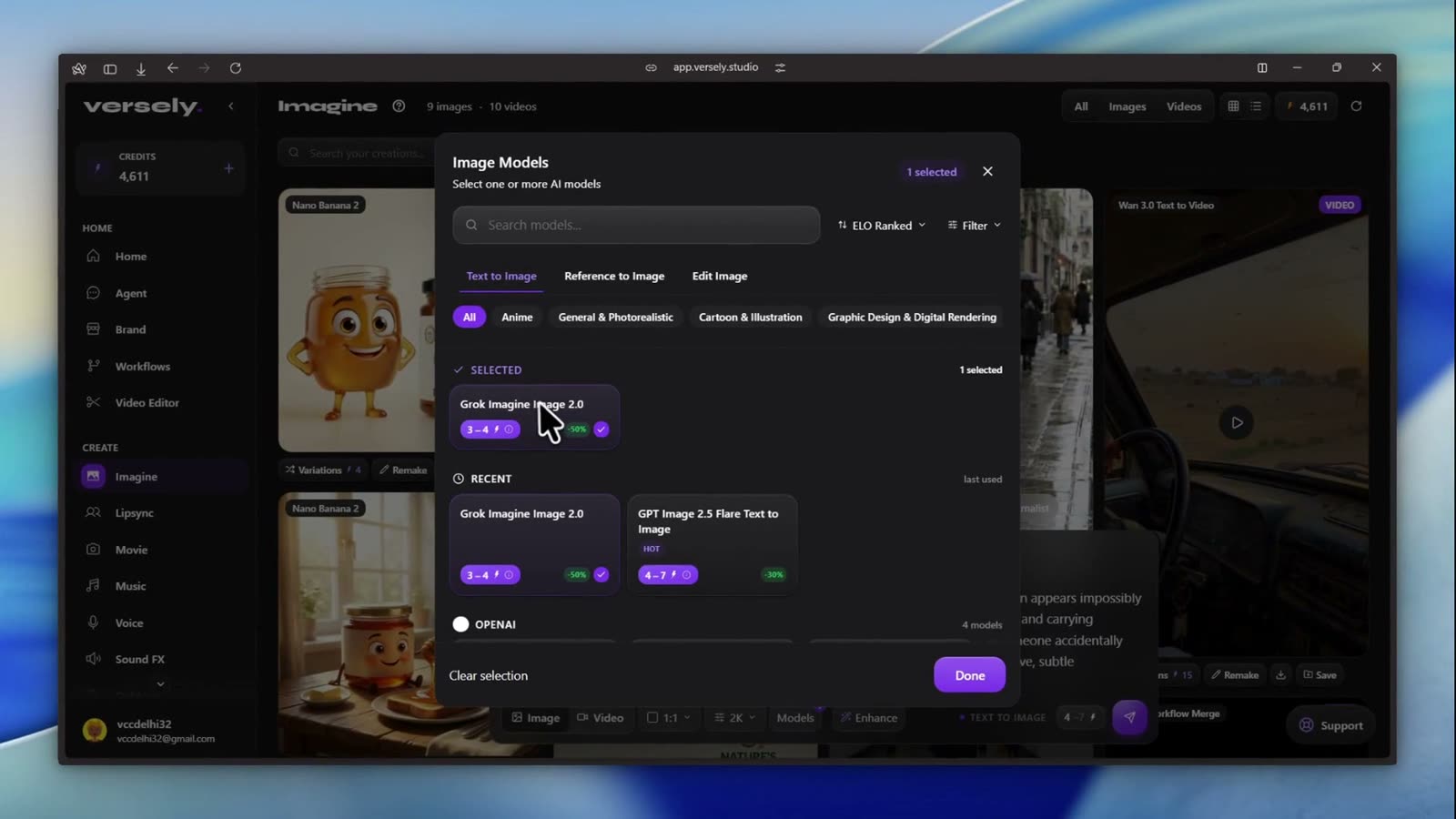 Grok Imagine Image 2.0 under Selected and Recent. The xAI provider rail sits further down the list if you prefer to browse.
- Type the prompt. The one from the video:
A completely ordinary suburban neighborhood at golden hour, except a gigantic full moon appears impossibly low behind the houses, almost touching the rooftops. People continue walking their dogs and carrying groceries as if nothing unusual is happening. The scene should feel like a photograph someone accidentally captured rather than fantasy concept art. Natural shadows, realistic atmospheric perspective, subtle imperfections
- Set the ratio chip (the video uses 1:1) and the quality chip (2K). The credit badge next to the send button re-quotes as you change them.
- Click the send arrow. A Generation started toast shows, then the card fills in and the toast reads Image ready.
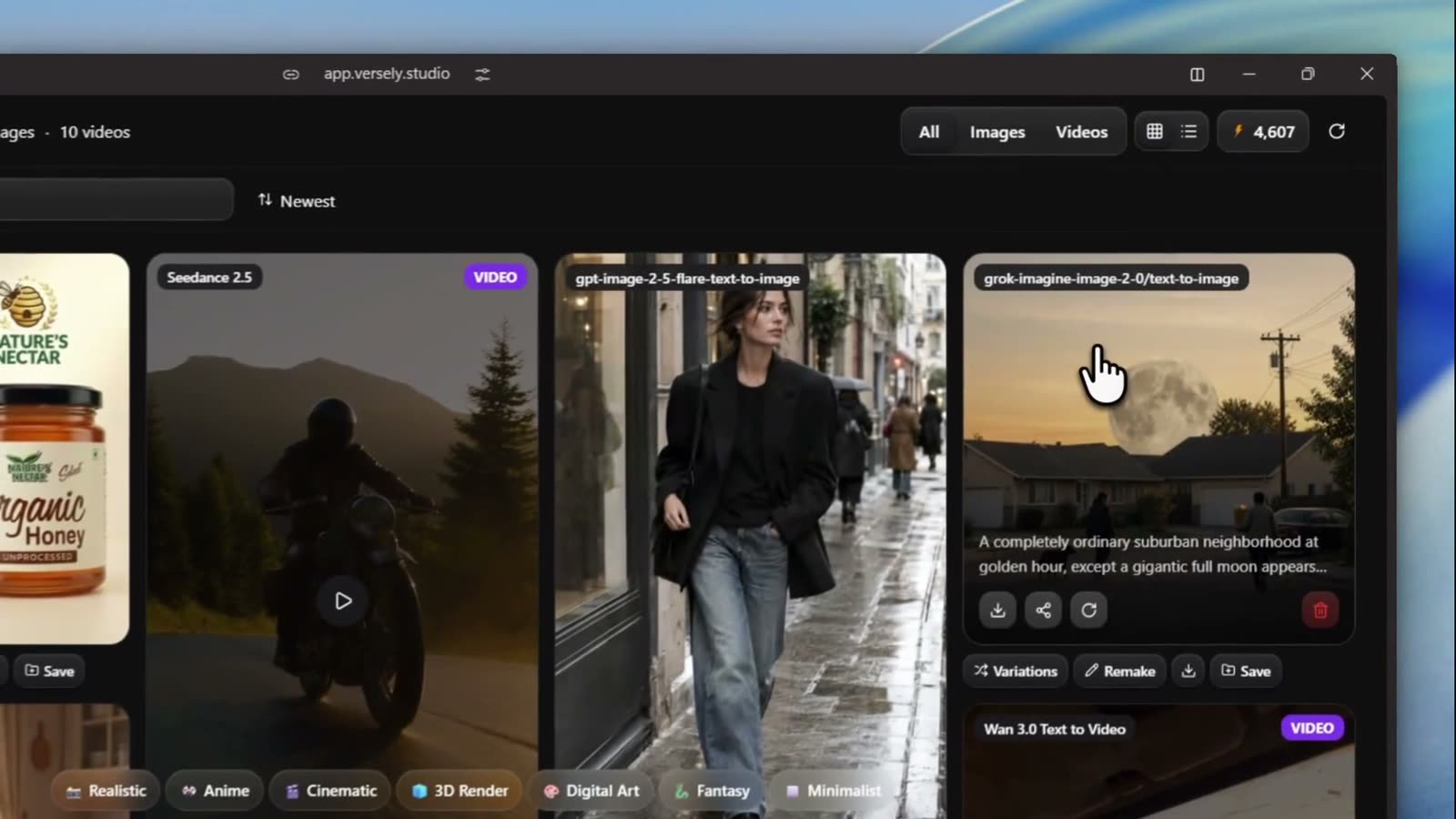 The finished card carries the row's wire id and the first line of the prompt. Hover for Variations, Remake, Download and Save.
- Click the card to open Details: the prompt with Copy prompt, model, type and timestamp, plus Download and Regenerate.
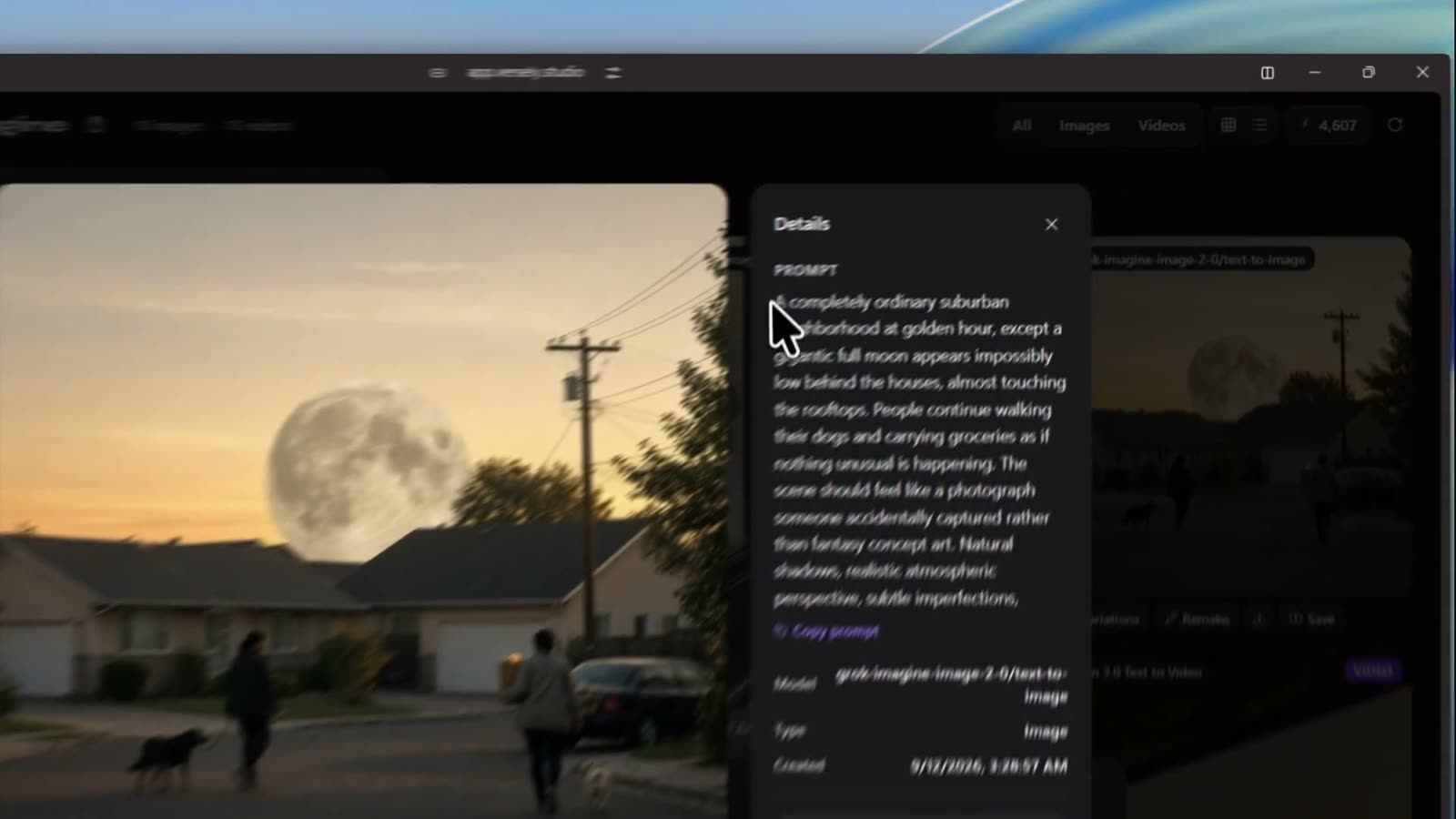 The low moon over the suburb. Details shows the exact prompt so you can copy it into a variation.
Shortcut: app.versely.studio/imagine?model=Grok Imagine Image 2.0 opens the composer with the model already selected.
Editing with the 2.0 edit row
Open Models, switch to the Edit image tab and choose Grok Imagine Image 2.0 Edit. Use the + button to attach up to three source images. Write the instruction as a change ("replace the sky with the low moon, keep everything else"). The default ratio is auto, which keeps the first input's shape. In Settings you can pick the output Format (jpeg, png or webp) and a Number of images up to 4, each one charged.
In the iOS app
The Versely Studio app draws its picker from the same catalogue, so both Grok rows are there. Controls are generated from the model's contract, so for the text-to-image row you get ratio and quality and nothing else to fiddle with.
- Accept the AI data consent notice on first launch. It lists every provider, xAI (Grok) included, and you can revisit it under Settings, AI Data & Privacy.
- Tap the centre + on the tab bar, then Image Studio.
- Tap the Choose models chip. In Select Image AI Models, type
grokin Search models... and tap Grok Imagine Image 2.0 in the xAI rail. The card shows the credit range with the full price struck through and a green discount tag. Tap Done. - Type or dictate the prompt.
- Tap the aspect chip to pick a ratio and the quality chip to choose between 1K and 2K (both live under the HD tier in the app; the per-tier menu picks the exact one).
- Tap ↑. The lightning badge on the button is the price. The result appears in the studio feed and in Media under Images.
- Download saves it to your camera roll. Share sends it out with a "Made with Versely" caption.
Prompting Grok Imagine for the shareable look
Grok 2.0 rewards prompts that describe a photograph rather than an artwork, and it holds the mundane details (power lines, parked cars, dog walkers) that sell the trick. What worked:
- One impossible element, everything else boring. The moon prompt above is the pattern. Change the element, keep the suburb.
- Say "as if nothing unusual is happening". It stops the model posing the extras.
- Ask for imperfections. "Subtle imperfections, realistic atmospheric perspective" pushes it away from concept-art gloss.
- Pick the ratio for the platform first. 9:16 for a Story, 4:3 or 3:2 for a feed post. A new ratio is a new charge, even at 2 credits.
- Run three prompts at 1K, then one at 2K. The whole loop costs less than a single 4K still on most other models.
If the destination is X itself, Grok Imagine when the destination is X covers why the look fits that feed. If you are choosing between this and OpenAI's row, Grok Imagine Image vs GPT Image 2 is the comparison.
What I'd actually do
- Open app.versely.studio/imagine with Grok preselected and run five variations of a "normal scene, one impossible thing" prompt at 1K, 2 credits each.
- Take the best two to 2K with Regenerate for 3 credits each.
- If the hero still needs a fix, use Grok Imagine Image 2.0 Edit with a one-line instruction rather than rerolling.
- Flip the composer to Video and animate the keeper with an image-to-video row for the Reel.
FAQ
How much does Grok Imagine Image 2.0 cost on Versely?
2 credits at 1K and 3 credits at 2K on the text-to-image row while the promotion runs. The edit row is 5 and 7 credits with no discount.
Why does the edit row cost more?
It is served by a different provider that needs an uploaded image rather than a previous job id, and that provider bills full rate. The discount is on the generate row only.
Is there a 4K option?
No. Grok Imagine Image 2.0 outputs 1K or 2K. Use a tight ratio and 2K when the still gets cropped.
Can I make several images at once?
On the edit row, yes: Settings, Number of images, up to 4, each charged. On the generate row, run the prompt again or use Variations on the finished card.
Can I ask the Versely agent instead?
Yes. In Agent, write the prompt and say "use Grok Imagine Image 2.0". The agent matches model names literally, so include the full row name.
Start at app.versely.studio/imagine, or browse every still model on the text to image page.
Versely AI Weekly
New AI models, every Thursday.
The image, video, audio and LLM models released that week, what each is good for, and what's new on Versely.