

How to Generate Trending Images with GPT Image 2.5
Step-by-step: pick GPT Image 2.5 Flare or Sunburst in Versely on the web and in the iOS app, set ratio and quality, and download a 4K still. 30% off now.
GPT Image 2.5 is live in Versely as four rows: Flare and Sunburst, each with a text-to-image and an edit variant. All four are 30% off right now, which puts a 1K or 2K still at 4 credits and a 4K still at 7. The video above is the whole web flow, unedited: open Imagine, pick the model, type, send, download. This post walks the same path on the web and in the iOS app, with the exact button labels, so you can follow along without guessing.
If you want the model-strategy view (when Flare, when Sunburst, when to stay on GPT Image 2), read GPT Image 2.5 creator workflow. This page is only the how.
What you are choosing between
| Row | What it is | 1K / 2K | 4K |
|---|---|---|---|
| GPT Image 2.5 Flare Text to Image | OpenAI's default 2.5 lane: fast, natural lighting, rich texture, transparent backgrounds | 4 credits (was 5) | 7 credits (was 9) |
| GPT Image 2.5 Sunburst Text to Image | The precision lane: extra fidelity on intricate detail, slower | 4 credits (was 5) | 7 credits (was 9) |
| GPT Image 2.5 Flare Edit | Change only what you ask on up to 6 input images, optional mask | 4 credits (was 5) | 7 credits (was 9) |
| GPT Image 2.5 Sunburst Edit | Same edit contract on the precision lane | 4 credits (was 5) | 7 credits (was 9) |
Every row takes the same 16 aspect ratios (auto, 1:1, 3:2, 2:3, 4:3, 3:4, 16:9, 9:16, 2:1, 1:2, 3:1, 1:3, 21:9, 9:21, 5:4, 4:5) and the same three quality tiers (1K, 2K, 4K). The price is set by the tier you pick, not the ratio.
Start on Flare for anything you will iterate on. Switch to Sunburst only for the keeper that needs intricate detail to hold.
On the web (app.versely.studio)
- Sign in at app.versely.studio and click Imagine under Create in the left rail. The URL is
/imagine. - In the composer at the bottom, make sure the Image toggle is on (not Video).
- Click Models. The Image Models dialog opens with a search box, an ELO Ranked sort, a Filter menu, and three tabs: Text to image, Reference to image, Edit image.
- Type
gptin the search box. Pick GPT Image 2.5 Flare Text to Image (or Sunburst). The card shows the credit price with the old price struck through and a green -30% badge. Click Done.
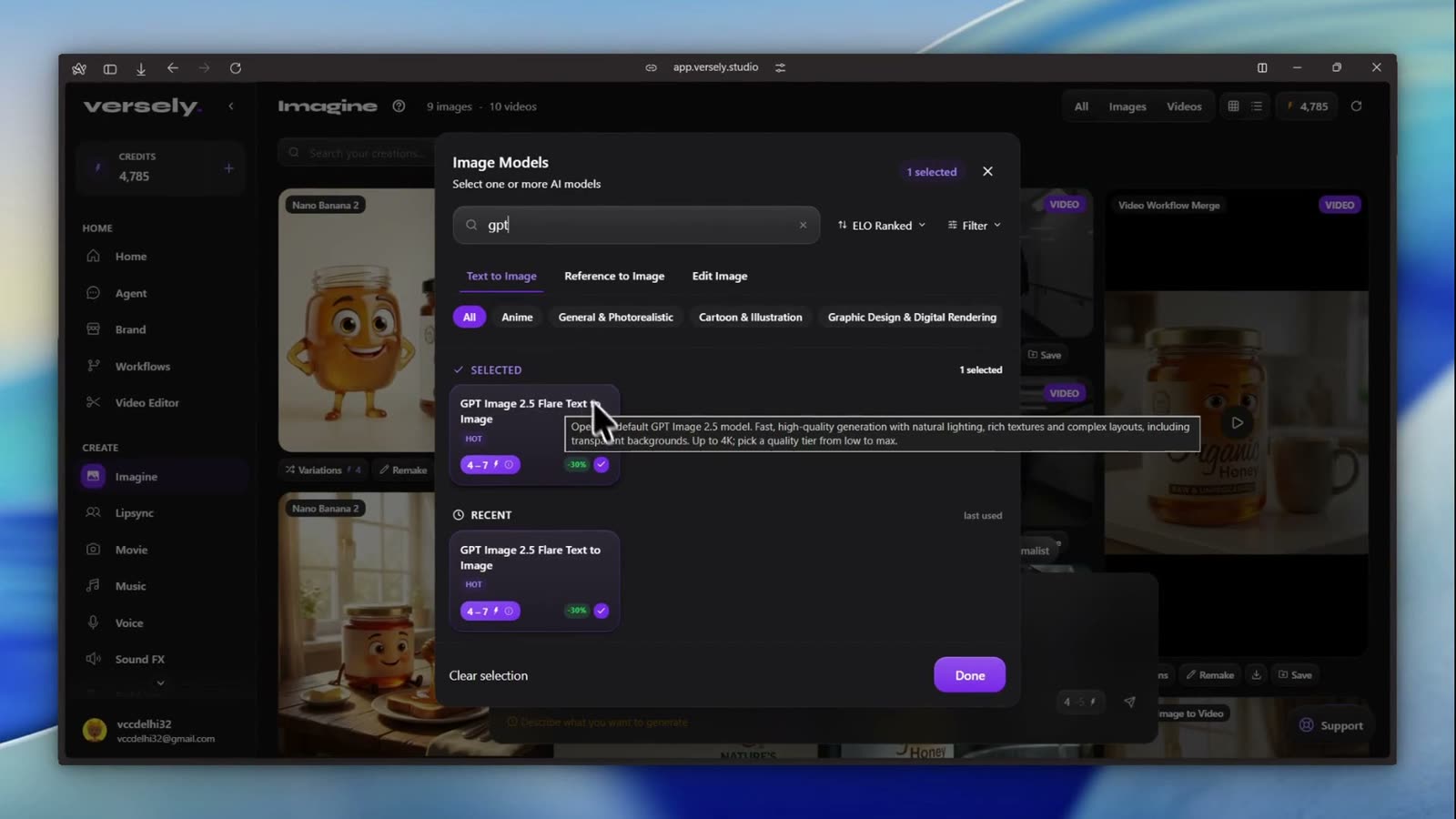 The Image Models dialog. Search, sort by ELO, filter by style, then Done. The selected row moves to the top under Selected, and shows up under Recent next time.
- Write the prompt in Describe the image you want to create.... The one in the video:
An editorial street-fashion photograph of a woman in a simple black oversized blazer and worn denim walking alone through a narrow European side street after rain, caught mid-step rather than posing, slightly messy hair, natural expression, pedestrians partially obscured in the background, storefront reflections, overcast daylight, understated luxury magazine aesthetic, realistic fabric texture, subtle film grain, no brand logos
- Set the ratio with the 16:9 chip (we switched it to 9:16 for a portrait post) and the quality with the 1K chip. The dropdown groups 1K and 2K under HD and 4K on its own. The credit number at the right of the composer updates as you change the tier: 4 at 1K or 2K, 7 at 4K.
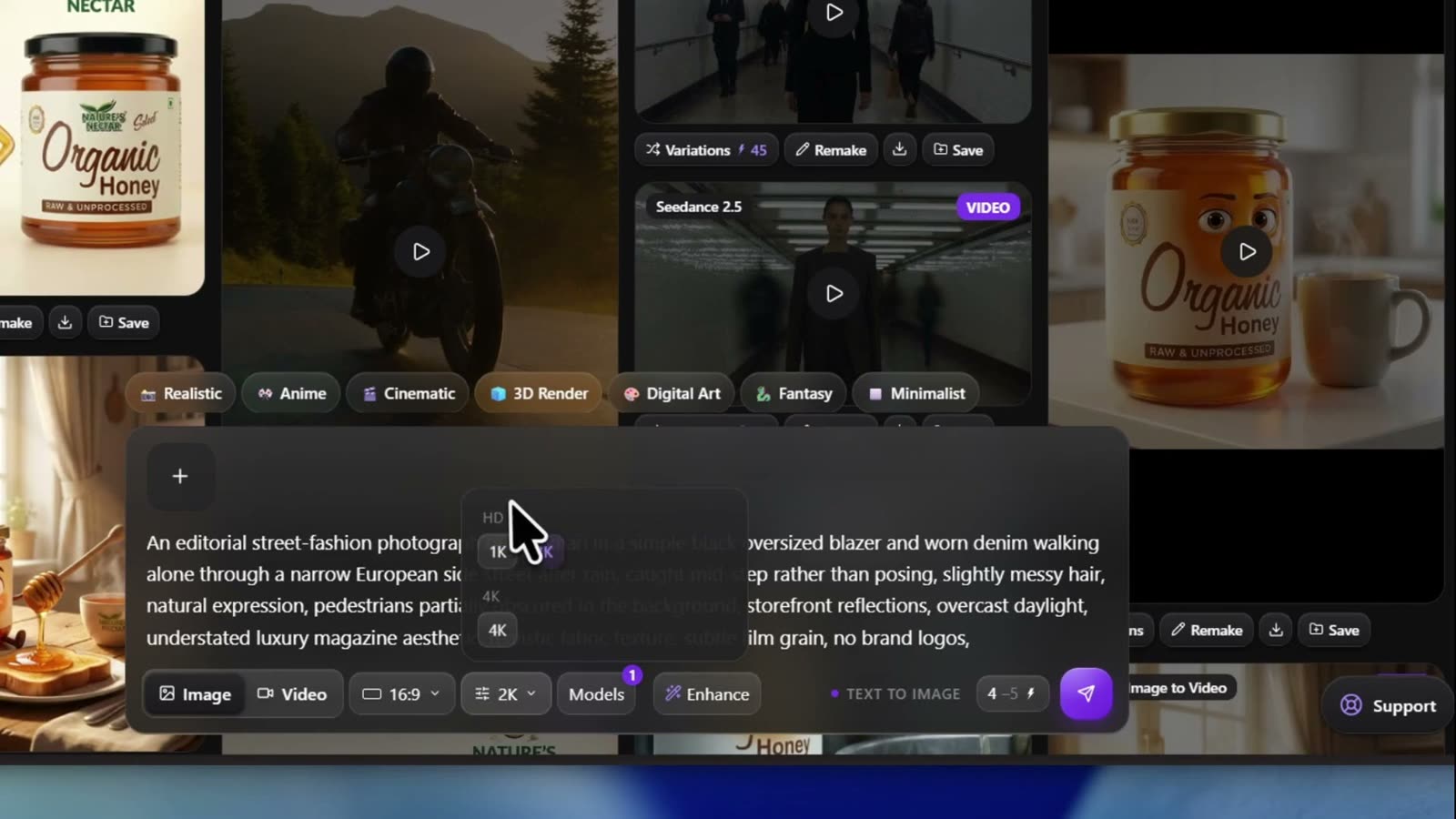 Prompt in, quality dropdown open. The label next to the send button reads TEXT TO IMAGE and the credit count, so you know the charge before you click.
- Optional: the style chips above the composer (Realistic, Anime, Cinematic, 3D Render, Digital Art, Fantasy, Minimalist) append a style to your prompt. Enhance rewrites the prompt for you. Leave both alone for an editorial brief like this one.
- Click the send arrow. A Generation started toast appears and a card with a percentage takes the first slot in the grid.
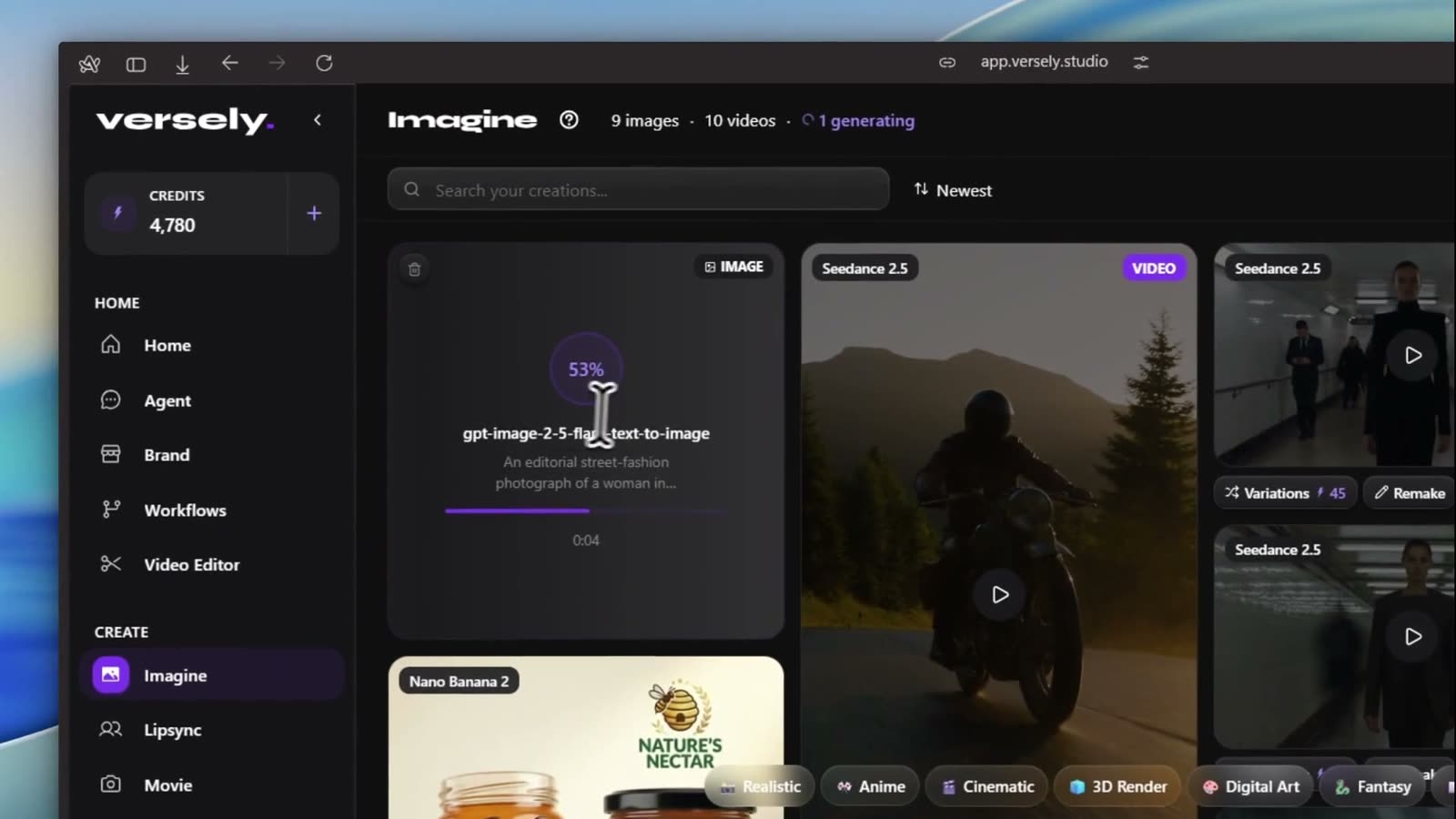 The card shows the wire id of the row that is rendering, here gpt-image-2-5-flare-text-to-image, and the first line of your prompt.
- When the toast says Image ready, click the card. The Details panel shows the prompt with a Copy prompt link, the model, the type, and the timestamp. Download saves the file. Regenerate reruns the same prompt and settings for another 4 credits.
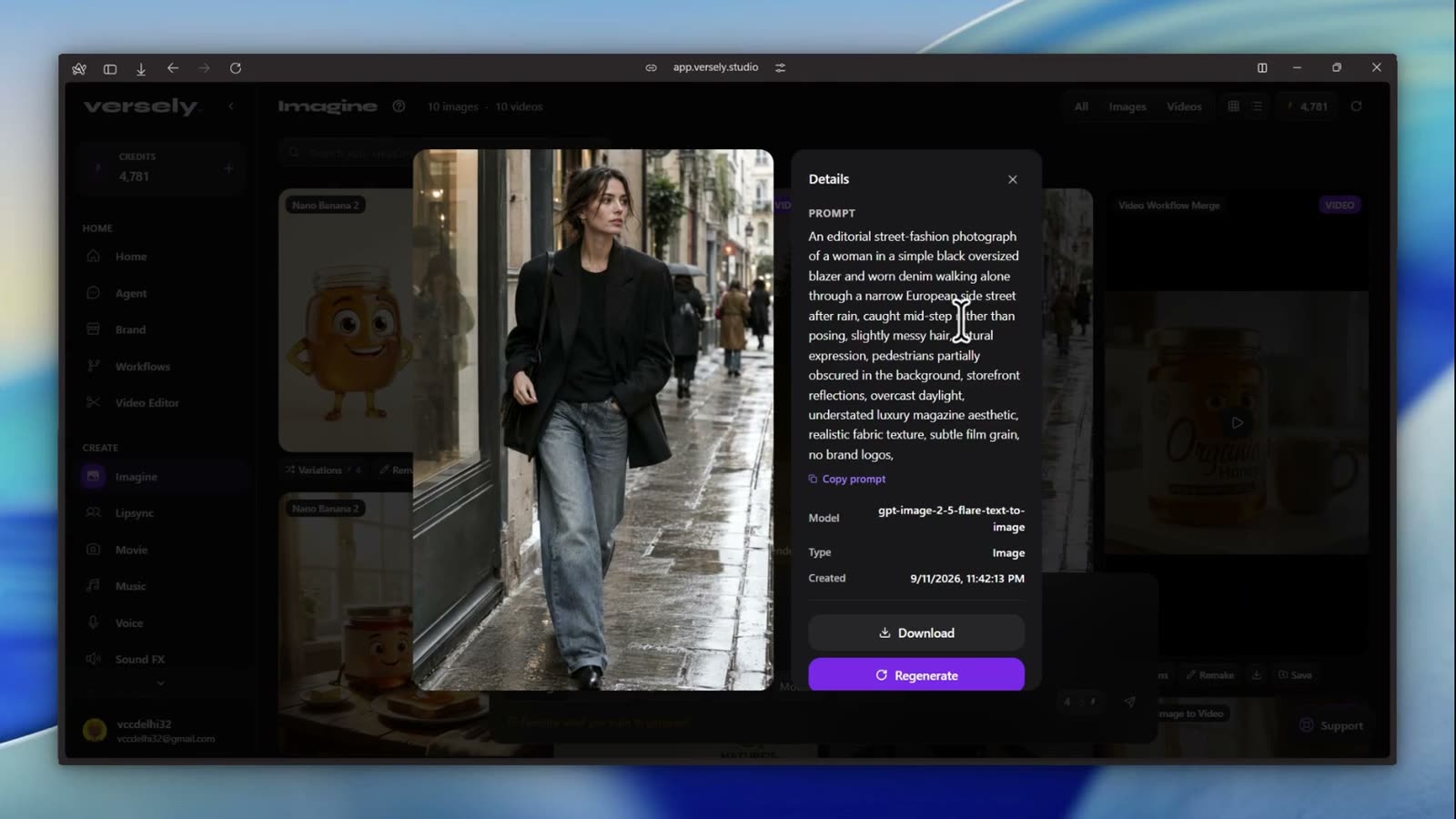 Details, Download, Regenerate. Every card in the grid also carries Variations, Remake and Save buttons.
Everything you generate stays in the Imagine grid. Use the All / Images / Videos filter at the top right to find it later, or open Generations in the sidebar for the full history with bulk download.
Shortcut: this link opens the composer with the model already picked: app.versely.studio/imagine?model=GPT Image 2.5 Flare Text to Image. Swap Flare for Sunburst in the name for the precision lane.
Editing a still instead
Open Models, switch to the Edit image tab, choose GPT Image 2.5 Flare Edit, then use the + button on the left of the composer to attach the image you want to change. Write the change as an instruction, not a scene description. The edit rows keep subject, composition and background and only touch what you name.
In the iOS app
The Versely Studio app reads the same catalogue as the web, so GPT Image 2.5 is in the picker there too. The controls are built from the model's input contract, so the labels below are what the app draws for these rows.
- On first launch the app asks you to accept the AI data consent notice, which names each provider, OpenAI included. You can review it later under Settings, AI Data & Privacy.
- Tap the + in the middle of the tab bar (the tabs are Home, Agent, +, Media, Profile). The Create menu opens.
- Tap Image Studio. The screen title reads Image and the composer toggle sits on Image.
- Tap the model chip, which reads Choose models until you pick one. The Select Image AI Models sheet slides up.
- Type
gptin Search models.... The funnel icon in the search bar sorts by ELO Ranked, Latest, Fast, Price: Low or Price: High. Models are grouped by provider, so scroll to the OpenAI rail. Each card shows the credit range, the rank badge and the green discount tag. Tap GPT Image 2.5 Flare Text to Image, then Done. - Type the prompt in the box (the placeholder reads A majestic lion in a golden savanna at sunset...). The mic button dictates if you would rather talk.
- Tap the aspect chip to open Aspect Ratio and choose 9:16 for a story or 1:1 for a feed post. Tap the quality chip (it reads HD or 4K). For GPT Image 2.5 the HD tier holds 1K and 2K and the 4K tier is 4K; the per-tier menu lets you pick the exact one.
- The # 1 pill sets how many images to make, 1 to 4. Each one is charged, so leave it on 1 while you are still shaping the prompt.
- Tap the round ↑ button. Its small lightning badge shows the credit cost. The result appears in the studio feed and in Media, under the Images filter.
- Tap the card's Download to save to your camera roll (the alert reads Saved to your gallery) or Share to send it on.
The AI Prompt bulb at the top of the input card rewrites your prompt with an LLM. It costs credits and is easy to skip for a prompt you already wrote well.
Prompting GPT Image 2.5 for something that trends
The rows are strong at exactly the things the current feed rewards: legible type, real-looking fabric and light, layouts that read as a photograph. A few rules that held up across our tests:
- Say what the camera saw, not what the image means. "Caught mid-step rather than posing" beats "candid vibes".
- Name the light. "Overcast daylight, storefront reflections" does more than any style word.
- Ban what you do not want. "No brand logos" is cheaper than an edit pass later.
- Type belongs in quotes. If the post needs a headline in the frame, write the exact words inside quotation marks and pick 2K or 4K so the letters survive compression.
- Pick the ratio for the surface before you generate. 9:16 for Reels and Stories, 4:5 for the Instagram feed, 1:1 for a carousel. Regenerating at a new ratio is a new charge.
For a deeper look at typography and multi-turn edits, see Flare vs Sunburst and GPT Image 2 vs Nano Banana 2 for legible type.
What I'd actually do
- Open app.versely.studio/imagine, select GPT Image 2.5 Flare Text to Image, and run your brief at 1K, 9:16 for 4 credits. Do three or four prompt variations at this price.
- Pick the winner and hit Regenerate at 4K (7 credits) only if the still goes on a big screen or gets cropped hard.
- If the keeper needs fine detail (jewellery, product labels, dense type), rerun the same prompt on Sunburst once and compare side by side.
- Fix small mistakes with Flare Edit rather than rerolling the whole frame.
- Take the finished still into Video mode in the same composer and animate it with an image-to-video model when the post needs motion.
FAQ
How much does GPT Image 2.5 cost on Versely?
4 credits for a 1K or 2K image and 7 credits for 4K, on all four rows, while the 30% promotion runs. The struck-through price on the model card is the full rate (5 and 9).
Is the price the same on the web and in the app?
Yes. A generation costs the same number of credits on both surfaces. Only the price you pay for credits differs by store.
Which should I pick, Flare or Sunburst?
Flare for volume and drafts. Sunburst for the one still that needs intricate detail. Both cost the same, so the only trade is speed.
Can I upload a reference image?
Use the edit rows for that. GPT Image 2.5 Flare Edit and Sunburst Edit accept up to 6 input images plus an optional mask, and keep everything you did not ask to change.
Can I ask the Versely agent to use GPT Image 2.5 instead?
Yes. Open Agent on the web or in the app and describe the image. Name the exact row, for example "use GPT Image 2.5 Flare Text to Image", because the agent matches model names literally and a bare "GPT Image 2.5" is not a row. The Imagine studio is still the faster route when you already know the model and want the ratio and quality chips in front of you.
Open the studio at app.versely.studio/imagine, or read the text to image overview if you are still choosing a model family.
Versely AI Weekly
New AI models, every Thursday.
The image, video, audio and LLM models released that week, what each is good for, and what's new on Versely.